S
Suzanne Scacca
Guest
Documentation can be helpful at every stage of the software user’s journey — whether it’s their first time stepping inside the app or they’re struggling to figure something out later on. But this UX law suggests that many won’t read it. So, what should you do?
I’m a big fan of the Laws of UX website as it’s a helpful resource and does a great job of summarizing best practices for UX design. I check in on the site from time to time to see if anything new has been added, and recently found something called the Paradox of the Active User.
Now, this isn’t a new design principle. The origins of the Paradox of the Active User go back to 1987. However, it might not be as popular or commonly known compared to ones like Fitt’s Law or the Law of Proximity.
So, let’s have a look at what this law says and then we’ll explore some strategies for designing your software around it.
The Paradox of the Active User law states:
Back in 1987, this phenomenon was observed and named by Mary Beth Rosson and John Carroll. They were working on interaction design and researching the cognitive processes that took place when humans interacted with computers.
The paradox is this:
I don’t know about you, but I’m guilty of this myself. I’ve been a heavy software user and trainer for about 20 years now. A lot of the time, I assume I’ll know how to use an app straight away. So I don’t bother with documentation.
Anyone else guilty of this?
I suspect that with how digitized our society has become since the naming of this law, a large part of the population falls under the active user category. (As opposed to in the ’80s when computer and software usage was significantly lower.)
As for why users don’t read the documentation, it’s not necessarily a matter of laziness, though I think short attention spans can play into it. It’s more likely that users assume that software will be designed similarly. It’s kind of like how they assume most ecommerce companies will offer free shipping or two-day deliveries because big brands have established that precedent.
Here’s the thing though:
Software developers don’t write documentation to repeat what everyone already knows. I recognize this even though I’m guilty of rushing inside new apps.
Developers write documentation because they recognize that users benefit from having carefully detailed instructions on how to use the software. And if their software is specialized in any way, there are going to be differences in features and functionality that need explaining.
Without some type of documentation and guided support, users are very much likely to stumble around and may struggle at some point. So, it’s something that needs to be provided—even if users choose to ignore it at first.
If documentation and other guidance are helpful to users, how do you provide them with this much-needed support?
Here are some things you can try:
If we know that many active users would rather start using the app than read documentation after signing up, an onboarding flow gives us a chance to provide a bit of guidance before they do. It won’t replace all the insights they’d get from a help center, but it at least allows us to set expectations.
The onboarding screen can be set up in a number of ways.
You could make it simple, adding a few screens that quickly explain the key features of the app. But, again, this requires the user to stop and read something.
A better option may be to place a short video (one to two minutes) on the intro screen.
According to a 2024 Video Viewer Trends Report:
This is a theory worth testing out with your software.
You could include your video in the onboarding flow or on the first screen after they enter the software.
Clockify doesn’t offer a video during onboarding. However, they do offer it as an alternative to scheduling a live demo. If they were to make it shorter, this would be a good one to include in the onboarding flow.
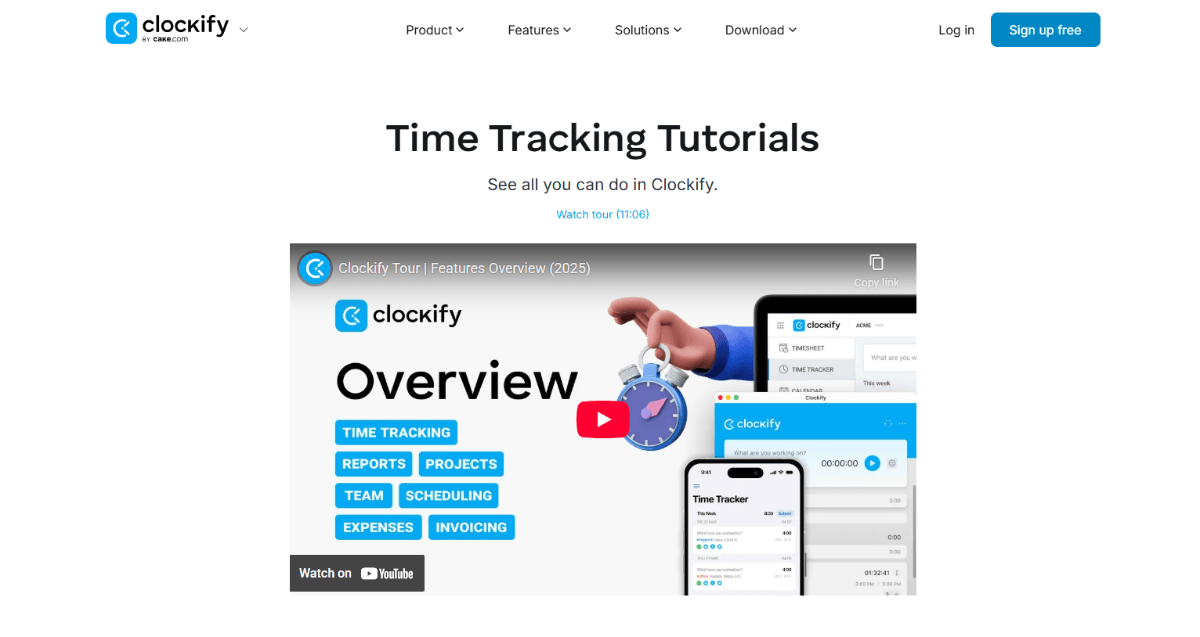
The video intro is longer than a couple of minutes. However, it primes the prospective or new user for what lies ahead.
A video like this sends the signal that this isn’t like other software they’ve used before. And that, if they take a moment to watch it, they’ll at the very least learn how to navigate the key functionality.
Capsule CRM doesn’t include video in the onboarding flow either. However, it does make video tutorials the very first thing that users see after completing it:
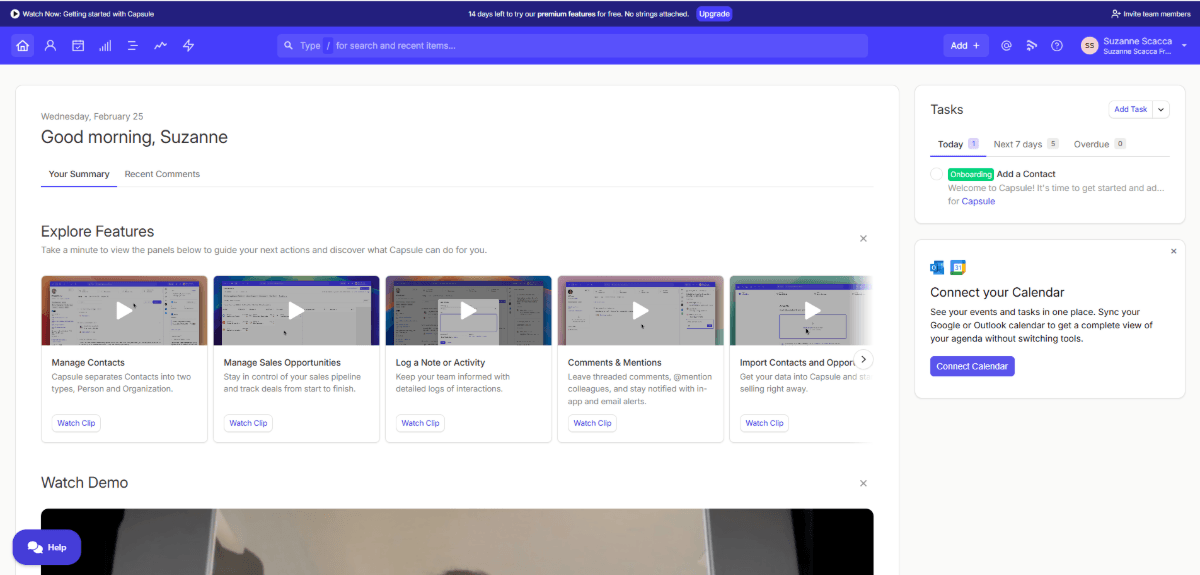
After personally greeting the new user, there is a “Your Summary” section. Here they’ll find short video tutorials that explore different features. There’s also a lengthier demo video below this section.
Both of these sections are dismissible. So, active users who are eager to start using the app can leave them where they are and return to them if they get stuck. Those who want to take the time to go through them can do so, dismissing the sections as they’re completed. This allows all your users to learn about the software at their own pace and as needed.
According to the Laws of UX page on the Paradox of the Active User:
If that’s what’s creating the urgency, then why not help them along with it?
One way to do this is to use the onboarding flow to set up and personalize their account before they step foot inside it.
Monday.com does this very thing.
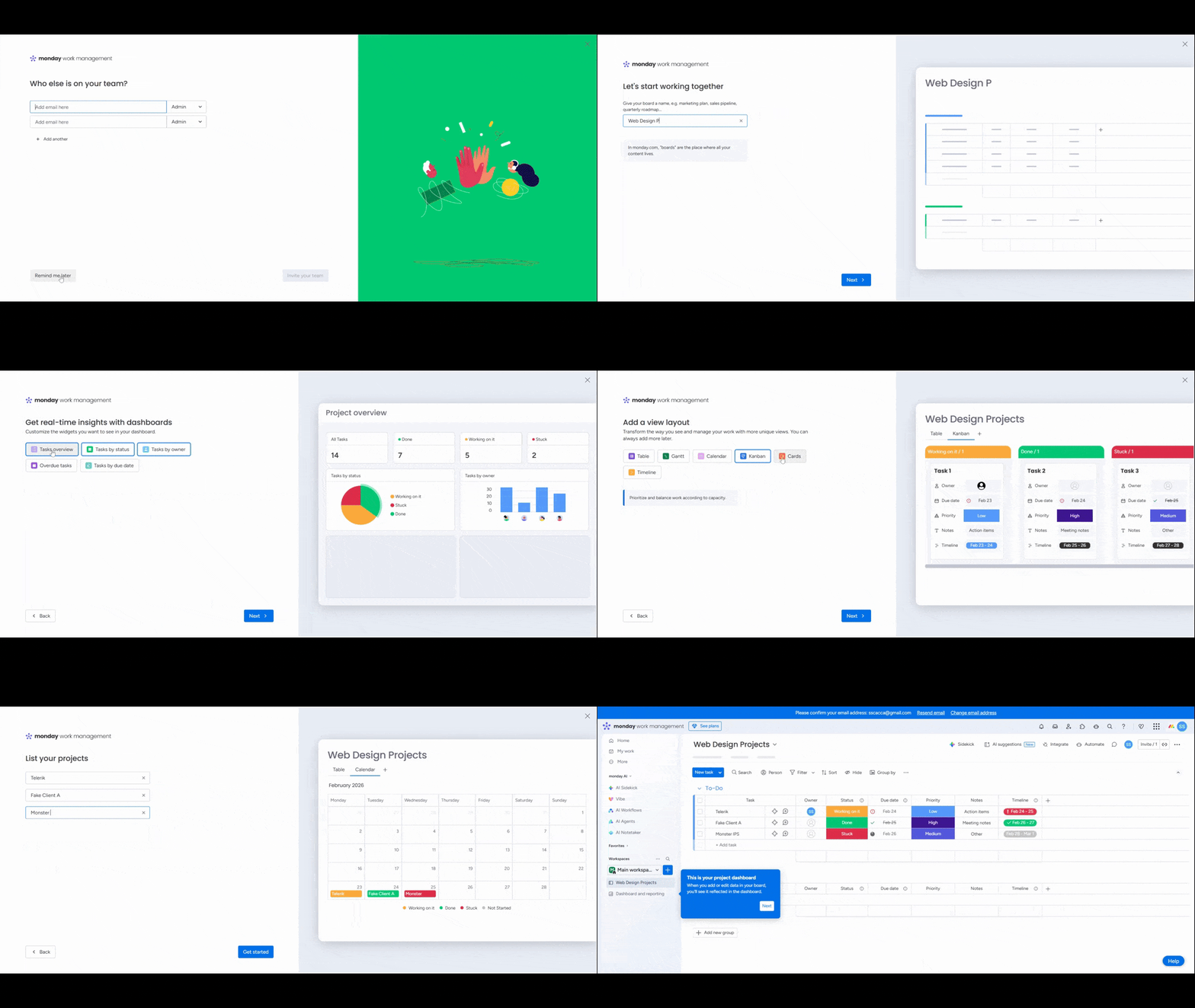
The start of the onboarding process asks some basic questions about the user. It then takes them into the flow above. The user makes selections related to:
At the end, they’re able to enter project names, if they’d like.
Not only does this enable users to quickly personalize their interface, it gives them an introduction to how task management works and looks within the app.
Another way you might help users accomplish their first big task is by adding a starter checklist to the dashboard.
Hotjar, for example, has a tab at the very top of the toolbar called “Get started.”
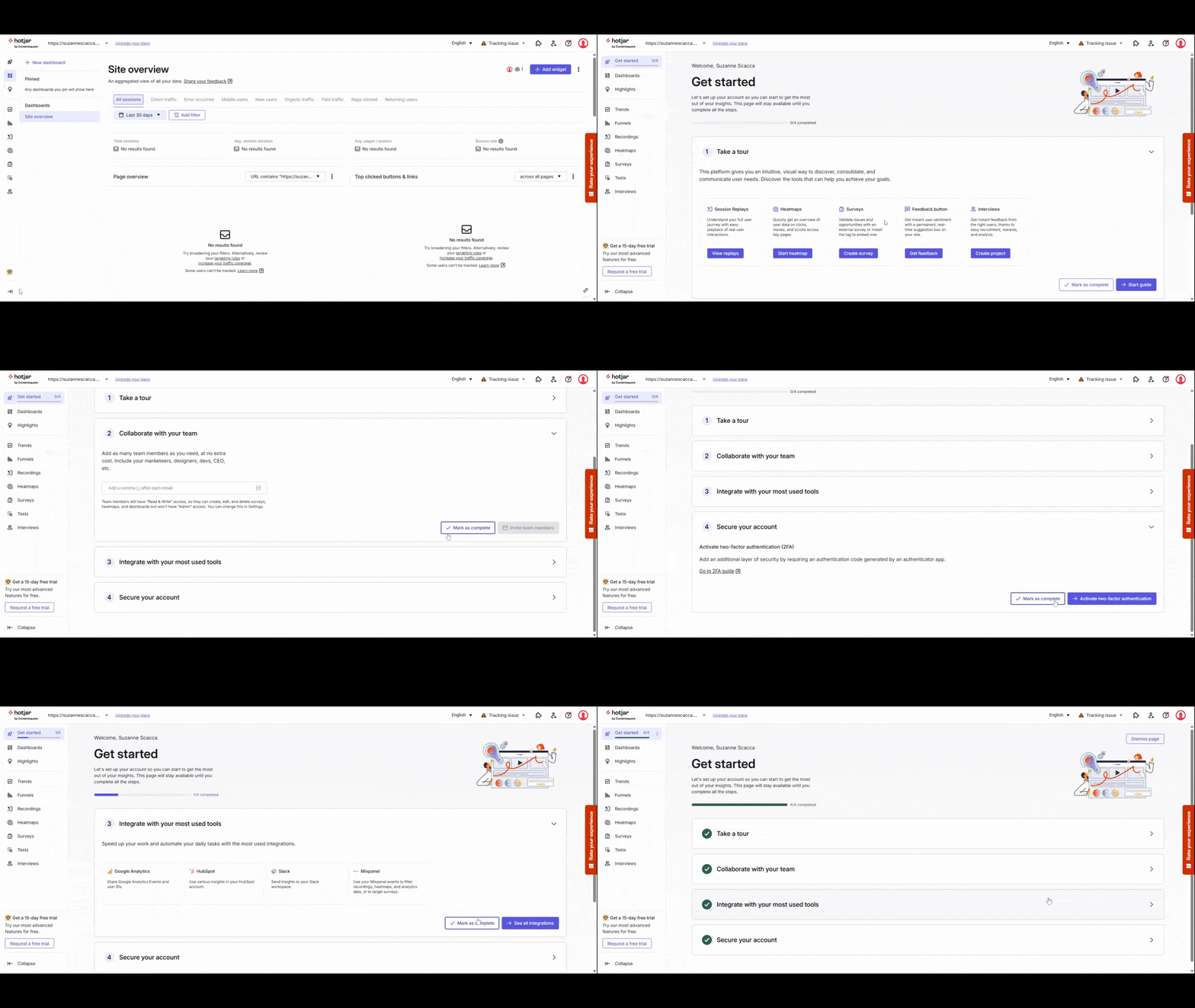
This isn’t so much a checklist to complete a first task—like recording a user session or launching a heatmap. But it does take care of the annoying administrative tasks that help users get the most out of the software, like adding other team members and integrating with other apps.
I think with a get-started checklist like this, a tab in the sidebar or a list in the dashboard is the perfect place to put it. But if you’re going to create a checklist that actually helps users complete their first task, consider adding it as a pop-up.
A task-based checklist can be tucked into the bottom-right corner of the screen or open as a full-screen modal. Wherever it goes, though, make sure the steps can be checked off and that the task counter (i.e., 0/4) updates as they make progress. You can see how this looks in the Hotjar example above.
If the hypothesis is that active users are going to skip the support materials and jump into the software, what about everyone else?
Including an onboarding, quick-start videos and starter checklists will benefit everyone. However, it’s also important to account for users who may experience massive obstacles without support.
You never want to force anyone to read your documentation, but you do want to make it readily available.
Zoom, for instance, offers various types of support in different areas of the app.
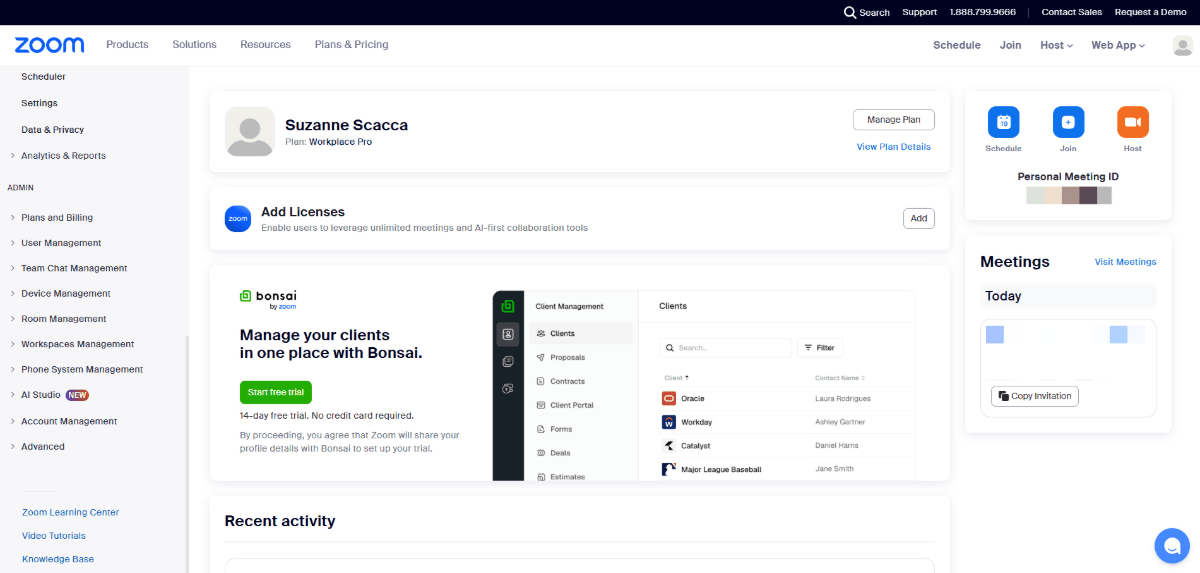
Under the Resources tab in the navigation, users can explore the blog, learning center, webinars and how-to videos. In the bottom-left corner of the sidebar, there are quick-links to the learning center, video tutorials and knowledge base as well.
In the top-right area of the toolbar, there’s a Support button that goes to the resource center, which includes an AI Companion and virtual agent chat. The phone number is there as well if they prefer to call and speak to someone. For users who need more hands-on help, they can request a demo.
By including easy access right within the software, active and non-active users will feel supported throughout their experience.
Another thing you might consider doing is adding explanatory tooltips. This is helpful if your app has features not commonly found in other ones.
For example, users see hover-triggered tooltip descriptions in Feedly when hovering over the features in the sidebar.

In this example, we see the following description appear when hovering over “Create AI Feed”:
Some users might not understand what an AI feed means, so this tooltip provides a bit of context. It also helps them decide which feature to use. “Follow Sources,” for instance, might sound like it would do the same thing. However, its tooltip reads:
For users that need a little extra support or context, offering up the right tools at the right time will reduce friction and keep them moving confidently through your app.
It’s not just new users (active or non-active) you have to worry about. The Paradox of the Active User also applies to existing users.
Say you’ve been using a tool like Figma for years. You know the software inside and out. So, why would you ever bother to read the documentation at this point?
The thing is, well-supported software is regularly updated. While users might not care about code optimization or bug fixes, it would be beneficial for them to know about new features. But if they’re not reading the release notes and changelog regularly, they’re not going to know about them unless you share that info with them. Or they stumble upon the feature the next time they’re in the app.
Instead of surprising users with new features, take advantage of your software’s dashboard or home screen. Add announcements about new features along with documentation links that expand upon them.
There are a number of places where you can put these announcements. In Figma’s case, an entry pop-up announces the new spot for Drafts:
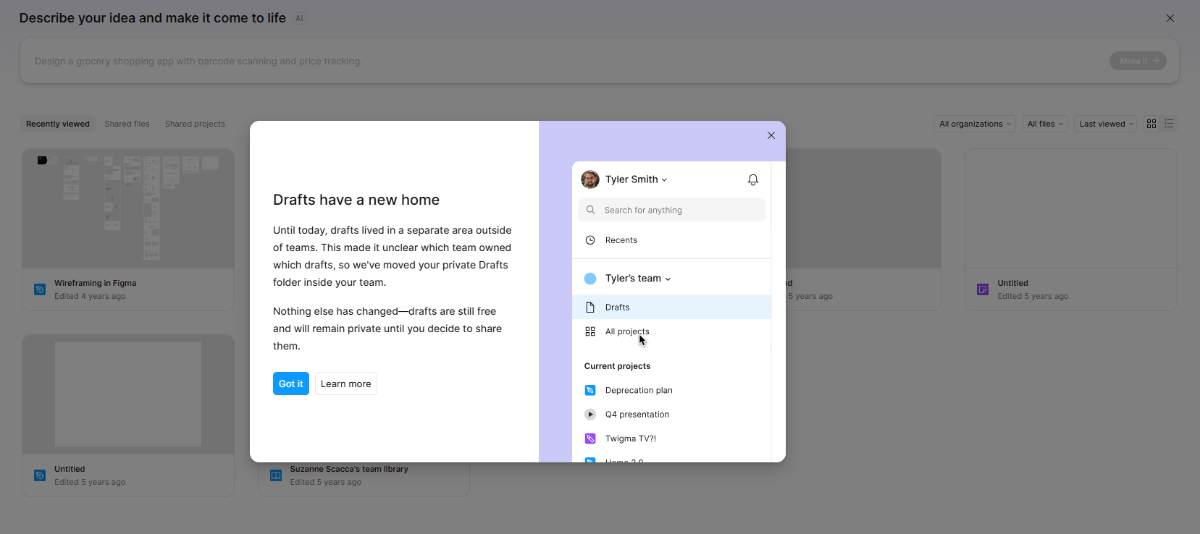
You could also add announcements as sticky bars at the top or to cards/blocks in the main dashboard. It all depends on how brief the announcement is and how vital it is that you share the info with your users.
If you have a particularly pressing new feature or update to share, consider showing the announcement with each entry into the app until the user actively dismisses it.
In addition, you could add tooltips that point out new features and functionality after a change.
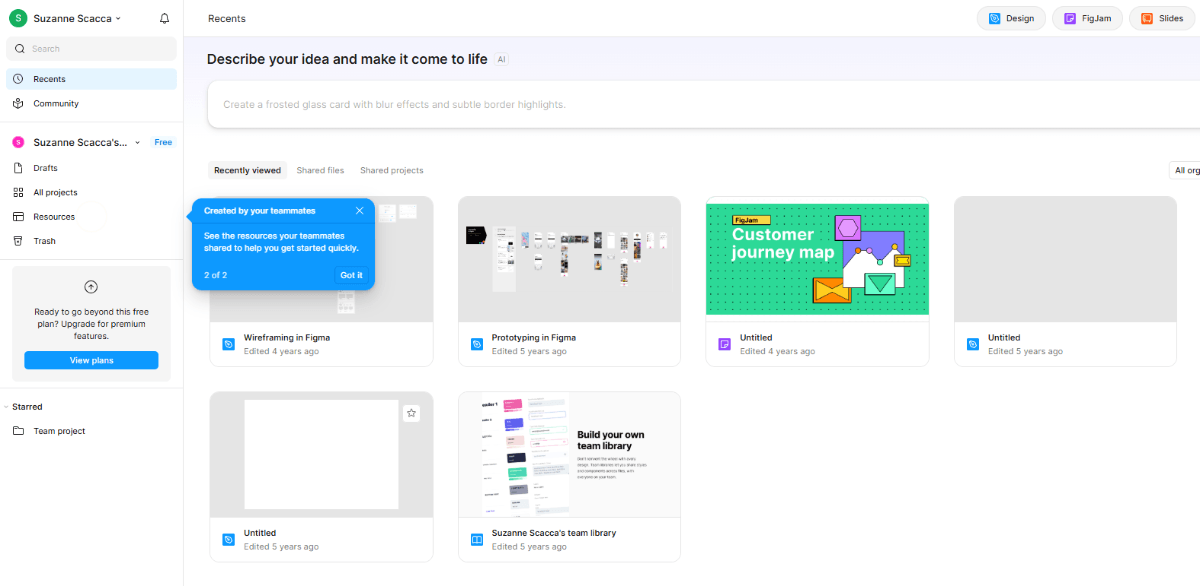
This example shows a tooltip next to the Resources tab that reads:
This forces users to stop and notice what you’re pointing out to them. It’s not a huge disruption, so it may be more well-received than asking them to watch a five-minute explainer video on a new feature.
Email can be a highly effective way to get important information in front of your users.
When they’re experiencing a sense of immediacy or urgency to get something done, they might just dismiss all the notices you display or outright ignore them. But an email can wait. Because it lives outside of the software, they can put it aside and read it when they have time. Or bookmark it for later.
Proton Mail, for instance, sends this message to new users.
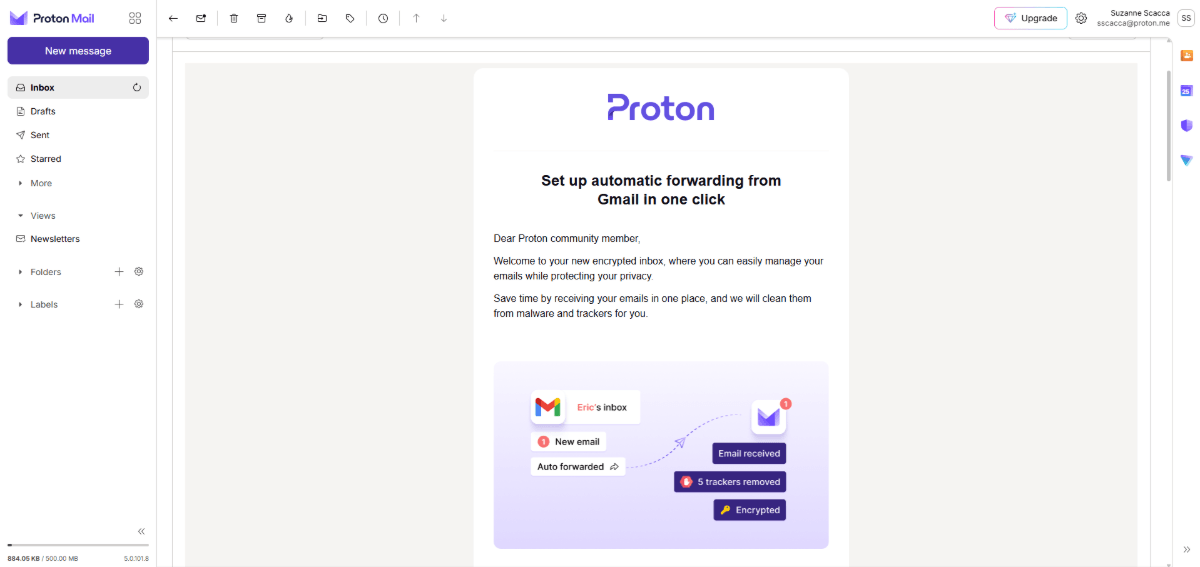
In this email, they provide information on how to automatically forward Gmail messages to Proton. This is likely a common first step for many users. Rather than leave them to sift through the settings or documentation on their own, Proton drops this information right into their new inbox.
OfferingTree is another brand that’s good about using email for communicating useful and timely info about key features and recent updates.
This is an email I recently got from them, which mentions updates to creating packages and memberships:
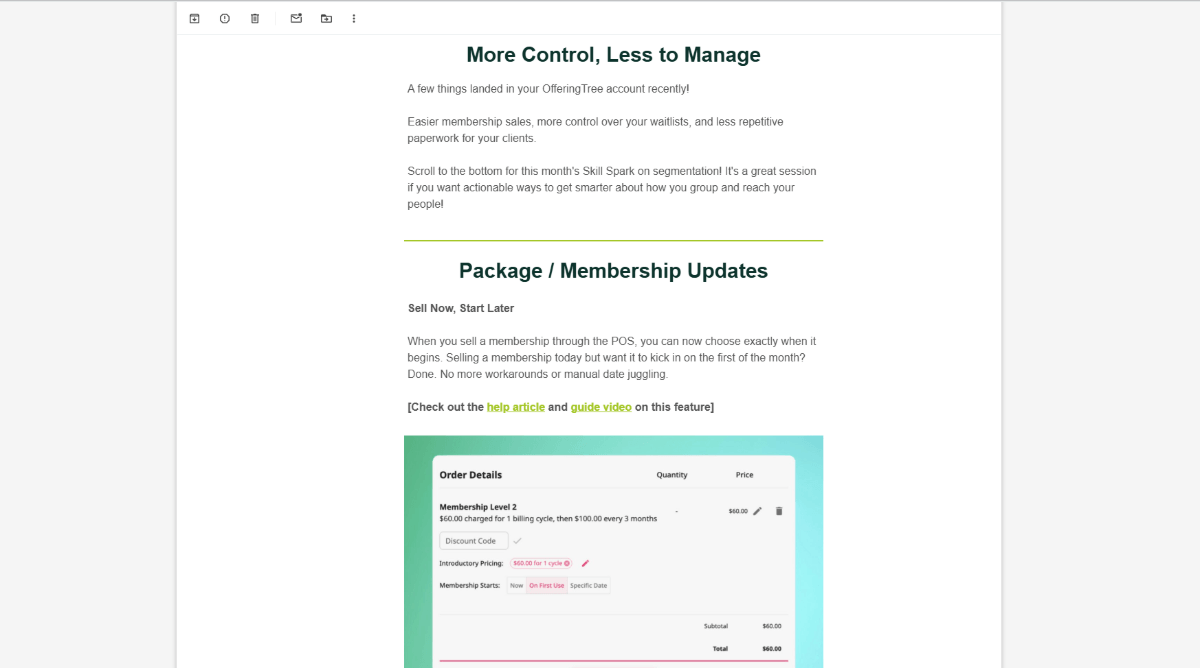
I’m not in the app all that often, so I welcome these updates. Not only do they clue me into changes to the software which can improve my experience, they encourage me to log back in and use it.
You can use email to mention new functionality or features like this one does. You can also use data (like from your support team) to learn more about your users’ most common obstacles. Then create short emails that focus on those single features, explain how they work and so on.
I was conducting user interviews recently for a software client of mine. The goal was to figure out why users cancelled their subscriptions. Many of them told me they struggled to use the app. When I asked if they had referred to any of the help center resources or video tutorials, many admitted to not using any of them. They knew they were there, they just didn’t want to stop what they were doing to look at it.
For some active users, there will always be a reluctance to use the resource center. So, you need to find ways to feed bits and pieces of the material to them, if not outright guide them toward what they need to do. The trick is to do so in a way that’s unobtrusive and makes them feel like it’s optional to receive the support you’re providing.
By the way, if you’re interested in learning more about UX laws and how they can help you design more effective software experiences, check out Kathryn’s UX Crash Course series.
Continue reading...
I’m a big fan of the Laws of UX website as it’s a helpful resource and does a great job of summarizing best practices for UX design. I check in on the site from time to time to see if anything new has been added, and recently found something called the Paradox of the Active User.
Now, this isn’t a new design principle. The origins of the Paradox of the Active User go back to 1987. However, it might not be as popular or commonly known compared to ones like Fitt’s Law or the Law of Proximity.
So, let’s have a look at what this law says and then we’ll explore some strategies for designing your software around it.
What Is the Paradox of the Active User?
The Paradox of the Active User law states:
“Users never read manuals but start using the software immediately.”
Back in 1987, this phenomenon was observed and named by Mary Beth Rosson and John Carroll. They were working on interaction design and researching the cognitive processes that took place when humans interacted with computers.
The paradox is this:
- Active users choose to start using software right away and to not waste time reading documentation.
- As a result, they’re likely going to make more mistakes or end up getting lost, which will inevitably slow them down for longer later on.
- If they’d read the documentation, it would’ve helped them expertly navigate the features and avoided those slowdowns.
I don’t know about you, but I’m guilty of this myself. I’ve been a heavy software user and trainer for about 20 years now. A lot of the time, I assume I’ll know how to use an app straight away. So I don’t bother with documentation.
Anyone else guilty of this?
I suspect that with how digitized our society has become since the naming of this law, a large part of the population falls under the active user category. (As opposed to in the ’80s when computer and software usage was significantly lower.)
As for why users don’t read the documentation, it’s not necessarily a matter of laziness, though I think short attention spans can play into it. It’s more likely that users assume that software will be designed similarly. It’s kind of like how they assume most ecommerce companies will offer free shipping or two-day deliveries because big brands have established that precedent.
Here’s the thing though:
Software developers don’t write documentation to repeat what everyone already knows. I recognize this even though I’m guilty of rushing inside new apps.
Developers write documentation because they recognize that users benefit from having carefully detailed instructions on how to use the software. And if their software is specialized in any way, there are going to be differences in features and functionality that need explaining.
Without some type of documentation and guided support, users are very much likely to stumble around and may struggle at some point. So, it’s something that needs to be provided—even if users choose to ignore it at first.
Tips for Designing Your Software for the Active User
If documentation and other guidance are helpful to users, how do you provide them with this much-needed support?
Here are some things you can try:
Include a Video During Onboarding
If we know that many active users would rather start using the app than read documentation after signing up, an onboarding flow gives us a chance to provide a bit of guidance before they do. It won’t replace all the insights they’d get from a help center, but it at least allows us to set expectations.
The onboarding screen can be set up in a number of ways.
You could make it simple, adding a few screens that quickly explain the key features of the app. But, again, this requires the user to stop and read something.
A better option may be to place a short video (one to two minutes) on the intro screen.
According to a 2024 Video Viewer Trends Report:
“83% of people prefer to consume instructional or informational content by watching a video.”
This is a theory worth testing out with your software.
You could include your video in the onboarding flow or on the first screen after they enter the software.
Clockify doesn’t offer a video during onboarding. However, they do offer it as an alternative to scheduling a live demo. If they were to make it shorter, this would be a good one to include in the onboarding flow.
The video intro is longer than a couple of minutes. However, it primes the prospective or new user for what lies ahead.
A video like this sends the signal that this isn’t like other software they’ve used before. And that, if they take a moment to watch it, they’ll at the very least learn how to navigate the key functionality.
Capsule CRM doesn’t include video in the onboarding flow either. However, it does make video tutorials the very first thing that users see after completing it:
After personally greeting the new user, there is a “Your Summary” section. Here they’ll find short video tutorials that explore different features. There’s also a lengthier demo video below this section.
Both of these sections are dismissible. So, active users who are eager to start using the app can leave them where they are and return to them if they get stuck. Those who want to take the time to go through them can do so, dismissing the sections as they’re completed. This allows all your users to learn about the software at their own pace and as needed.
Help Users Achieve a Quick Win
According to the Laws of UX page on the Paradox of the Active User:
“Users are often motivated to complete their immediate tasks and therefore they don’t want to spend time up front reading documentation.”
If that’s what’s creating the urgency, then why not help them along with it?
One way to do this is to use the onboarding flow to set up and personalize their account before they step foot inside it.
Monday.com does this very thing.
The start of the onboarding process asks some basic questions about the user. It then takes them into the flow above. The user makes selections related to:
- Columns to include in the task manager
- Analytics to add to the dashboard
- Preferred layout (e.g., kanban, calendar, etc.)
At the end, they’re able to enter project names, if they’d like.
Not only does this enable users to quickly personalize their interface, it gives them an introduction to how task management works and looks within the app.
Another way you might help users accomplish their first big task is by adding a starter checklist to the dashboard.
Hotjar, for example, has a tab at the very top of the toolbar called “Get started.”
This isn’t so much a checklist to complete a first task—like recording a user session or launching a heatmap. But it does take care of the annoying administrative tasks that help users get the most out of the software, like adding other team members and integrating with other apps.
I think with a get-started checklist like this, a tab in the sidebar or a list in the dashboard is the perfect place to put it. But if you’re going to create a checklist that actually helps users complete their first task, consider adding it as a pop-up.
A task-based checklist can be tucked into the bottom-right corner of the screen or open as a full-screen modal. Wherever it goes, though, make sure the steps can be checked off and that the task counter (i.e., 0/4) updates as they make progress. You can see how this looks in the Hotjar example above.
Design for the Active AND Not-so-active User
If the hypothesis is that active users are going to skip the support materials and jump into the software, what about everyone else?
Including an onboarding, quick-start videos and starter checklists will benefit everyone. However, it’s also important to account for users who may experience massive obstacles without support.
You never want to force anyone to read your documentation, but you do want to make it readily available.
Zoom, for instance, offers various types of support in different areas of the app.
Under the Resources tab in the navigation, users can explore the blog, learning center, webinars and how-to videos. In the bottom-left corner of the sidebar, there are quick-links to the learning center, video tutorials and knowledge base as well.
In the top-right area of the toolbar, there’s a Support button that goes to the resource center, which includes an AI Companion and virtual agent chat. The phone number is there as well if they prefer to call and speak to someone. For users who need more hands-on help, they can request a demo.
By including easy access right within the software, active and non-active users will feel supported throughout their experience.
Another thing you might consider doing is adding explanatory tooltips. This is helpful if your app has features not commonly found in other ones.
For example, users see hover-triggered tooltip descriptions in Feedly when hovering over the features in the sidebar.
In this example, we see the following description appear when hovering over “Create AI Feed”:
“Track topics, companies, and technologies across the web”
Some users might not understand what an AI feed means, so this tooltip provides a bit of context. It also helps them decide which feature to use. “Follow Sources,” for instance, might sound like it would do the same thing. However, its tooltip reads:
“Follow websites, Reddit, blogs, newsletters, and more”
For users that need a little extra support or context, offering up the right tools at the right time will reduce friction and keep them moving confidently through your app.
Include Notices About New Features in the Dashboard
It’s not just new users (active or non-active) you have to worry about. The Paradox of the Active User also applies to existing users.
Say you’ve been using a tool like Figma for years. You know the software inside and out. So, why would you ever bother to read the documentation at this point?
The thing is, well-supported software is regularly updated. While users might not care about code optimization or bug fixes, it would be beneficial for them to know about new features. But if they’re not reading the release notes and changelog regularly, they’re not going to know about them unless you share that info with them. Or they stumble upon the feature the next time they’re in the app.
Instead of surprising users with new features, take advantage of your software’s dashboard or home screen. Add announcements about new features along with documentation links that expand upon them.
There are a number of places where you can put these announcements. In Figma’s case, an entry pop-up announces the new spot for Drafts:
You could also add announcements as sticky bars at the top or to cards/blocks in the main dashboard. It all depends on how brief the announcement is and how vital it is that you share the info with your users.
If you have a particularly pressing new feature or update to share, consider showing the announcement with each entry into the app until the user actively dismisses it.
In addition, you could add tooltips that point out new features and functionality after a change.
This example shows a tooltip next to the Resources tab that reads:
Created by your teammates
See the resources your teammates shared to help you get started quickly
This forces users to stop and notice what you’re pointing out to them. It’s not a huge disruption, so it may be more well-received than asking them to watch a five-minute explainer video on a new feature.
Email Users with Info about the Product
Email can be a highly effective way to get important information in front of your users.
When they’re experiencing a sense of immediacy or urgency to get something done, they might just dismiss all the notices you display or outright ignore them. But an email can wait. Because it lives outside of the software, they can put it aside and read it when they have time. Or bookmark it for later.
Proton Mail, for instance, sends this message to new users.
In this email, they provide information on how to automatically forward Gmail messages to Proton. This is likely a common first step for many users. Rather than leave them to sift through the settings or documentation on their own, Proton drops this information right into their new inbox.
OfferingTree is another brand that’s good about using email for communicating useful and timely info about key features and recent updates.
This is an email I recently got from them, which mentions updates to creating packages and memberships:
I’m not in the app all that often, so I welcome these updates. Not only do they clue me into changes to the software which can improve my experience, they encourage me to log back in and use it.
You can use email to mention new functionality or features like this one does. You can also use data (like from your support team) to learn more about your users’ most common obstacles. Then create short emails that focus on those single features, explain how they work and so on.
Wrapping Up
I was conducting user interviews recently for a software client of mine. The goal was to figure out why users cancelled their subscriptions. Many of them told me they struggled to use the app. When I asked if they had referred to any of the help center resources or video tutorials, many admitted to not using any of them. They knew they were there, they just didn’t want to stop what they were doing to look at it.
For some active users, there will always be a reluctance to use the resource center. So, you need to find ways to feed bits and pieces of the material to them, if not outright guide them toward what they need to do. The trick is to do so in a way that’s unobtrusive and makes them feel like it’s optional to receive the support you’re providing.
By the way, if you’re interested in learning more about UX laws and how they can help you design more effective software experiences, check out Kathryn’s UX Crash Course series.
Continue reading...