P
Petar Grigorov
Guest
Let’s build a custom CRM-style app in Progress Podio to revive the sales tradition of ringing the gong to celebrate big wins in a digital world.
Working in sales is like … Hold on, this deserves a separate blog post (or three) of its own. So, let’s try again. A lean sales pipeline without celebration is like a spreadsheet without formulas: It holds the data, but where’s the fun?
I cannot think of a specific, single historical moment when the tradition of ringing a gong on the sales floor after each significant event originated. It is rather a fascinating mix of financial history, human psychology and a little bit of big-screen and TV magic. Modern times require modern solutions, and this tradition, along with many others, has gone digital.
Whether your team is currently tracking sales leads on sticky notes or wrestling with a rigid, one-size-fits-all CRM that dictates how you work, maybe it’s time to rethink and pivot operations.
Today, I am going to walk you through building a customized CRM-style app in Progress Podio and wiring it up so that the moment a deal is marked as “Closed Won,” it automatically generates a victory email to the team and triggers a webhook to play a digital gong. Because nothing says “I’m a closer” quite like a sudden, synthesized brass percussion sound that mildly startles the office vibe. Let’s dive in!

Image from Unsplash
Before we get to business, first things first. What is the Podio platform? It supports building digital workspaces tailored to your team’s unique processes, allowing you to unify and automate work with different tools and workflows. Whether you’re tracking leads, managing projects, streamlining operations or automating approvals, Podio software is built to support a wide range of scenarios.
The Podio platform isn’t just a place to store data. It’s a flexible, no-code/low-code (or more code if you need) workspace that you can mold to fit your exact business processes. Podio helps you structure, scale and simplify work, on your terms.
Note: The purpose of this blog post is to outline important concepts, provide connections between then and produce a real-life example. While it is not a step-by-step guide, a detailed setup will be provided and linked ad-hoc, so that you can build the same solution yourself.
Podio software operates on a system of Workspaces, Apps and Items. Think of it as a digital LEGO collection for business operations, but with fewer pieces to step on in the middle of the night.

Image from Unsplash
Workspaces are used to structure your work and to collaborate with specific groups of people. People generally name their workspaces after departments, clients, teams or projects (e.g., “HR”, “Intranet” or “Secret Project”). You can then invite collaborators and add apps to the workspace to get your work done.
Apps create items and organize them to give you an overview of your work. The structure of an app will determine the structure of the items you create within it. For example, a Projects app enables you to create project items. Think of an app as a folder.
An Item could be a project, a sales lead, a meeting or anything you choose. Think of an Item as a living document that is part of a folder.
To use Podio as a CRM, you’ll typically want to create a dedicated Sales Workspace and populate it with a few core Apps:
The true value proposition of Podio software for potential buyers is the drag-and-drop builder. You aren’t stuck with “Industry Field 3” if you don’t want it. You just drag the exact fields you need into your app. (If you want to see exactly what this interface looks like, I highly recommend you check out the Podio Basics video to explore the respective features).
The entire structure of the CRM solution, including the complete setup can be found here. You can start by installing the created by the Podio App Team - Sales Management app pack (i.e., container for a couple of apps with similar or dependent functionalities). In Podio, every application can be created from scratch or by modifying an existing template. The latter is what I strongly recommend you do for this app pack so it can fit your own processes and requirements. Further below, I’ll be focusing mainly on the Deals app structure as it is important for our gong setup goal.
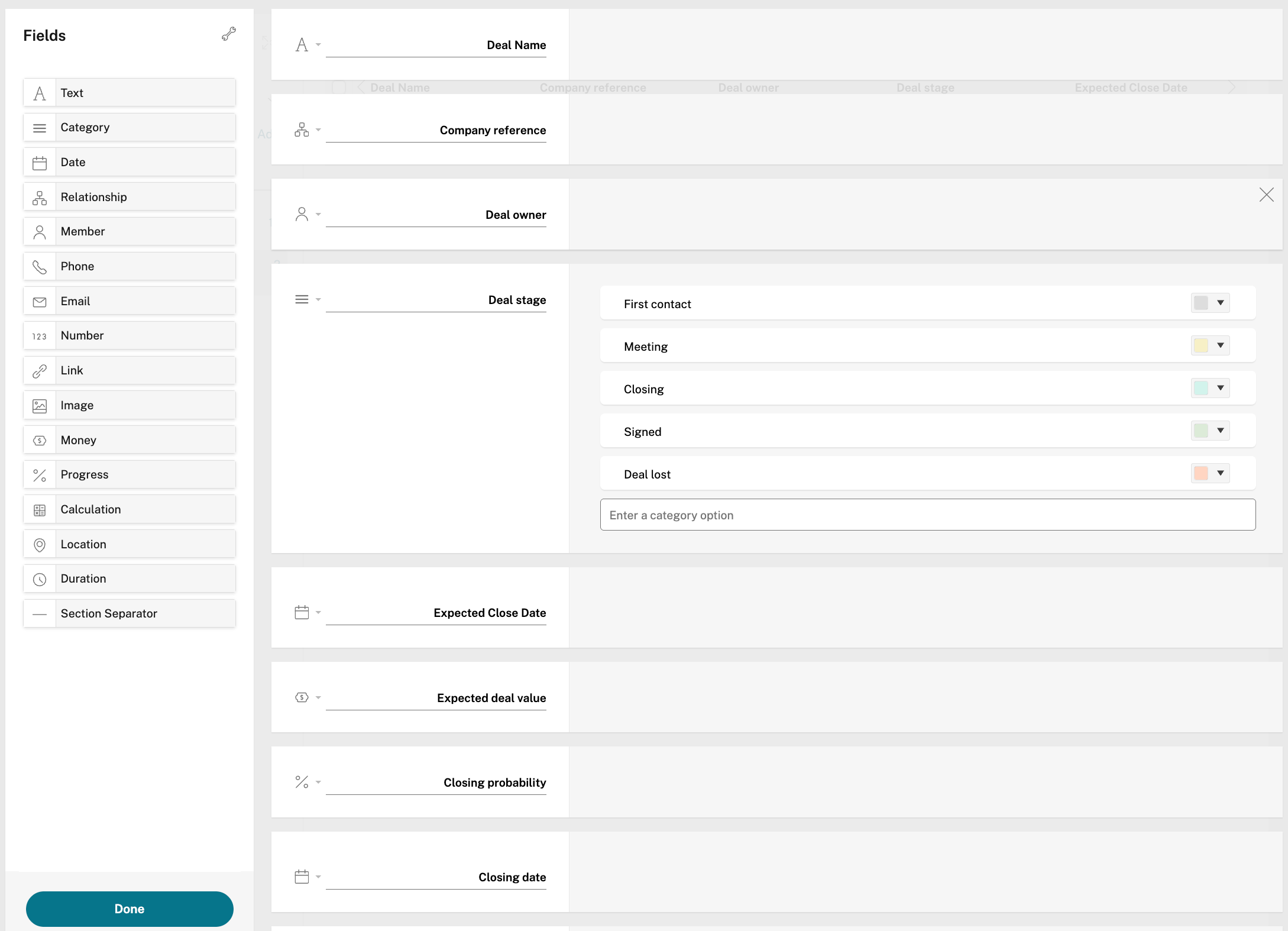
To make the digital gong work, the Deals App needs a few crucial fields:
Your Status field is the trigger for automation. It could include different statuses/stages like First Contact, Negotiating, Closed Won, Closed Lost, etc.
Pro Tip: You might also want to add a “Ghosted Us, Probably Moved to Alpha Centauri” category for those special prospects who simply vanish into the ether.
Podio is not only organizing your work, but also about automating your business and related processes. To make things happen automagically, I am using Podio Workflow Automation (PWA). This no-code automation engine is what makes Podio software really shine when you’d like to automate key tasks and set up triggers for essential time-sensitive actions. Several examples include date triggers, generation of PDF documents, sending emails, SMS, charts creation, third-party integrations etc.
The Sales Management App Pack already includes some sample workflow automation flows out of the box. You can easily change the status of a deal, and Podio will auto-update the deal fields like closure dates and probability, add comments, auto-update a status in the Contact app (i.e., from a prospect to a customer), generate and send document for electronic signature, trigger report items in the Reports app, etc.
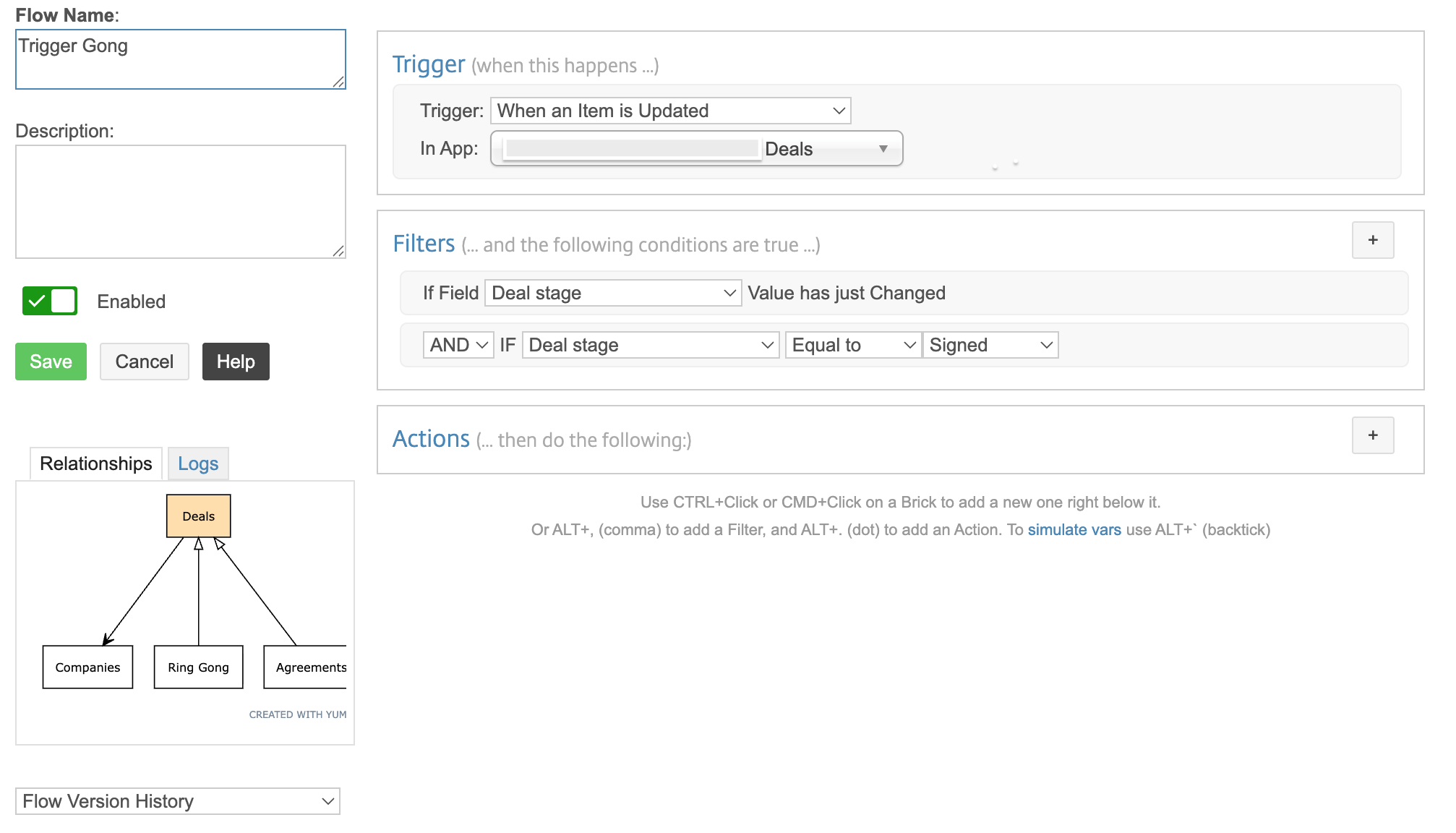
For the sake of this blog post, I am going to build a custom workflow to act as our gong trigger.
Let’s create a new flow in the Deals App that watches your pipeline like a hawk (or a supervisor).
Now, the system is actively waiting for someone to seal a deal.
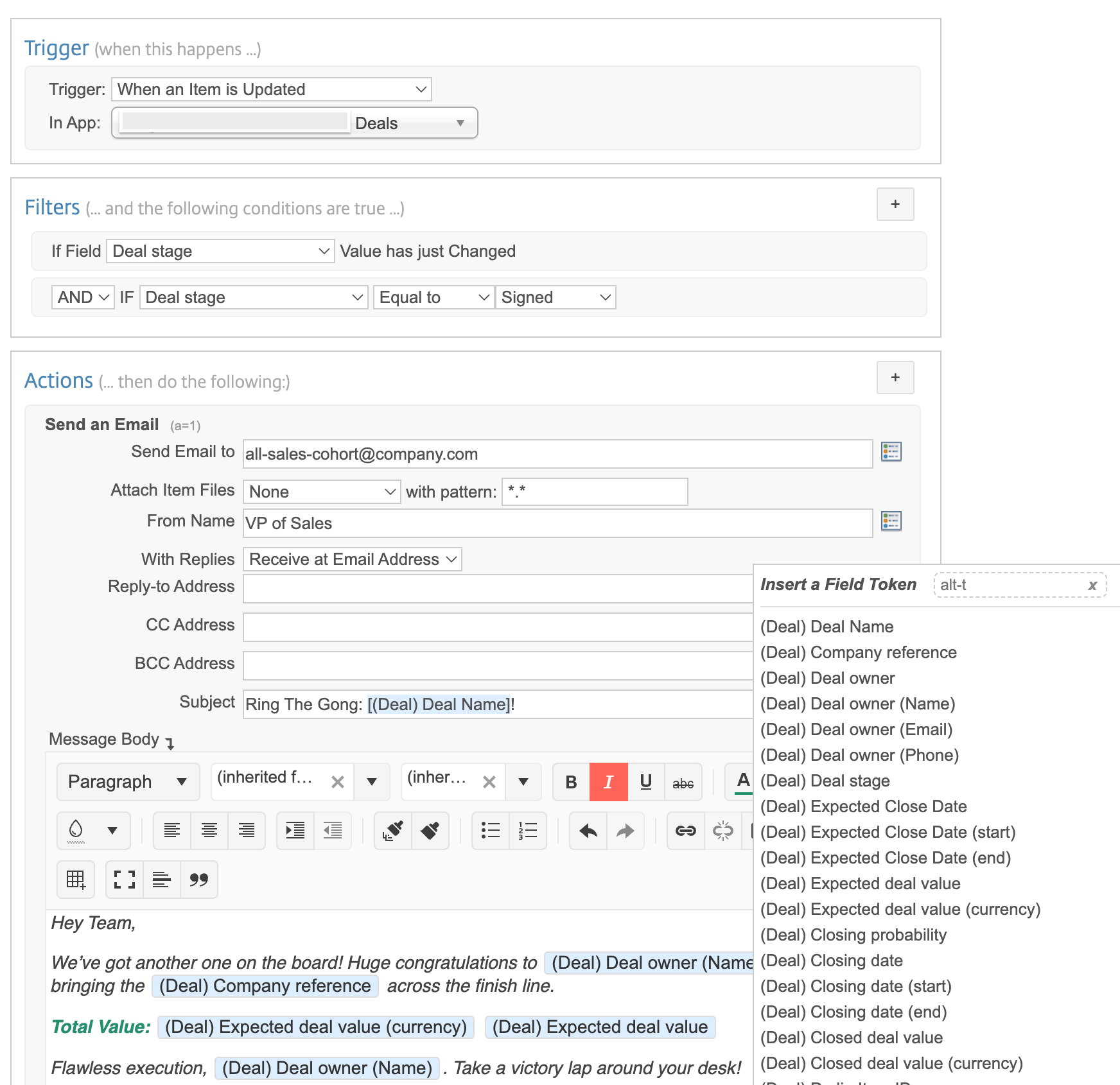
When a deal closes successfully, leadership appreciates knowing this immediately. You can configure PWA to automatically draft and send a notification email, saving your reps from having to type out a brag-heavy message themselves.
Subject: Ring The Gong:
Message Body:
Hey Team,
We’ve got another one on the board! Huge congratulations to
Total Value:
Flawless execution,
Just be mindful of your distribution list and consider setting a minimum deal size threshold in your workflows. Nothing spikes the team’s adrenaline quite like a massive win, but CCing the entire company on every single deal is a surefire way to get your automated emails permanently routed to everyone’s spam folder and a glare from the IT department. Save the digital confetti for the big ones.
Now for the grand finale. We want to send a signal to an audible digital gong as a last step. At first glance, this sounds trivial. In practice, it touches on browser security models, operating‑system boundaries and Podio automation architecture.
Remember, Podio and PWA require no coding skills—not just to get started, but also to get proficient (and efficient). However, given the right circumstances, you can unleash your coding skills from low-code to the full-code spectrum.
Podio Workflow Automation supports webhooks. You can create a webhook flow and it gives you a URL that can receive posted data and then trigger actions inside Podio. Payloads do have a size limit, and webhook flows aren’t directly tied to Podio apps unless you create/search items in the flow.
Separately, Podio’s API also supports event webhooks (notify a URL on item create/update, etc.). Those webhooks must be reachable on the public internet. So, to summarize, Podio can send events outward (API webhooks) and Workflow Automation can receive inbound webhooks.
Modern browsers do not allow remote-triggered audio playback without user interaction and background audio triggered by a server event, so I’d try these below. Let me know what you think.
You can set up a WiFi-enabled smart speaker on the sales floor, hooked up to an automation platform like Zapier, for which Podio has an extension. It’s waiting for a web signal to blast a sound file of a massive gong. To do this, you need a “receiver” (a browser extension or web app) that listens for a signal from Podio and plays a sound.
If you are a business owner or operations manager looking for a new platform, remember: A CRM shouldn’t just be a digital filing cabinet. It should be an active participant in your company culture.
By utilizing highly customizable Progress Podio Apps and pairing them with Workflow Automations, you remove friction from your sales process, unify your team’s data and add a little bit of fun back into the workday.
Go ahead, build your workspace, fine-tune those workflows and let the celebrations begin. Whether you stick with a high-impact victory email or choose to have a digital gong echo your team’s success (and your programming skills), the Sales team has certainly earned it.
Bonne chance and happy selling!
Continue reading...
Working in sales is like … Hold on, this deserves a separate blog post (or three) of its own. So, let’s try again. A lean sales pipeline without celebration is like a spreadsheet without formulas: It holds the data, but where’s the fun?
I cannot think of a specific, single historical moment when the tradition of ringing a gong on the sales floor after each significant event originated. It is rather a fascinating mix of financial history, human psychology and a little bit of big-screen and TV magic. Modern times require modern solutions, and this tradition, along with many others, has gone digital.
Whether your team is currently tracking sales leads on sticky notes or wrestling with a rigid, one-size-fits-all CRM that dictates how you work, maybe it’s time to rethink and pivot operations.
Today, I am going to walk you through building a customized CRM-style app in Progress Podio and wiring it up so that the moment a deal is marked as “Closed Won,” it automatically generates a victory email to the team and triggers a webhook to play a digital gong. Because nothing says “I’m a closer” quite like a sudden, synthesized brass percussion sound that mildly startles the office vibe. Let’s dive in!
Image from Unsplash
Before we get to business, first things first. What is the Podio platform? It supports building digital workspaces tailored to your team’s unique processes, allowing you to unify and automate work with different tools and workflows. Whether you’re tracking leads, managing projects, streamlining operations or automating approvals, Podio software is built to support a wide range of scenarios.
The Podio platform isn’t just a place to store data. It’s a flexible, no-code/low-code (or more code if you need) workspace that you can mold to fit your exact business processes. Podio helps you structure, scale and simplify work, on your terms.
Note: The purpose of this blog post is to outline important concepts, provide connections between then and produce a real-life example. While it is not a step-by-step guide, a detailed setup will be provided and linked ad-hoc, so that you can build the same solution yourself.
Step 1: In Need of a Lightweight CRM Solution? Build Your Own in Podio
Podio software operates on a system of Workspaces, Apps and Items. Think of it as a digital LEGO collection for business operations, but with fewer pieces to step on in the middle of the night.
Image from Unsplash
Workspaces are used to structure your work and to collaborate with specific groups of people. People generally name their workspaces after departments, clients, teams or projects (e.g., “HR”, “Intranet” or “Secret Project”). You can then invite collaborators and add apps to the workspace to get your work done.
Apps create items and organize them to give you an overview of your work. The structure of an app will determine the structure of the items you create within it. For example, a Projects app enables you to create project items. Think of an app as a folder.
An Item could be a project, a sales lead, a meeting or anything you choose. Think of an Item as a living document that is part of a folder.
To use Podio as a CRM, you’ll typically want to create a dedicated Sales Workspace and populate it with a few core Apps:
- Contacts: Your digital list for prospects, leads and clients.
- Companies: The organizations those contacts belong to.
- Deals (or Opportunities): Where the actual monetary value is tracked.
- Agreements: Where all the paperwork needs to be signed.
- Reports: The visualization of all data filtered as preferred.
The true value proposition of Podio software for potential buyers is the drag-and-drop builder. You aren’t stuck with “Industry Field 3” if you don’t want it. You just drag the exact fields you need into your app. (If you want to see exactly what this interface looks like, I highly recommend you check out the Podio Basics video to explore the respective features).
The entire structure of the CRM solution, including the complete setup can be found here. You can start by installing the created by the Podio App Team - Sales Management app pack (i.e., container for a couple of apps with similar or dependent functionalities). In Podio, every application can be created from scratch or by modifying an existing template. The latter is what I strongly recommend you do for this app pack so it can fit your own processes and requirements. Further below, I’ll be focusing mainly on the Deals app structure as it is important for our gong setup goal.
The Essential ‘Deals’ App Structure
To make the digital gong work, the Deals App needs a few crucial fields:
- Deal Name (Text field)
- Deal Value (Number/Money field)
- Deal Owner (Member field)
- Deal Closure Date (Date field)
- Deal Status (Category field)
Your Status field is the trigger for automation. It could include different statuses/stages like First Contact, Negotiating, Closed Won, Closed Lost, etc.
Pro Tip: You might also want to add a “Ghosted Us, Probably Moved to Alpha Centauri” category for those special prospects who simply vanish into the ether.
Step 2: Enter Podio Workflow Automation (PWA)
Podio is not only organizing your work, but also about automating your business and related processes. To make things happen automagically, I am using Podio Workflow Automation (PWA). This no-code automation engine is what makes Podio software really shine when you’d like to automate key tasks and set up triggers for essential time-sensitive actions. Several examples include date triggers, generation of PDF documents, sending emails, SMS, charts creation, third-party integrations etc.
The Sales Management App Pack already includes some sample workflow automation flows out of the box. You can easily change the status of a deal, and Podio will auto-update the deal fields like closure dates and probability, add comments, auto-update a status in the Contact app (i.e., from a prospect to a customer), generate and send document for electronic signature, trigger report items in the Reports app, etc.
For the sake of this blog post, I am going to build a custom workflow to act as our gong trigger.
Let’s create a new flow in the Deals App that watches your pipeline like a hawk (or a supervisor).
- Open Podio Workflow Automation and select your Deals App.
- Click Add New Flow and choose Item Update.
- For the trigger: Set the condition to trigger If Deal Status value has changed AND Deal Status value is equal to “Closed Won”.
Now, the system is actively waiting for someone to seal a deal.
Step 3: Auto-Generating the ‘Deal Closed Won’ Email
When a deal closes successfully, leadership appreciates knowing this immediately. You can configure PWA to automatically draft and send a notification email, saving your reps from having to type out a brag-heavy message themselves.
- In the previous workflow, click Add Action and select Send Email.
- Set the recipient. (This could be the Sales Manager, a teaм distribution list, etc.)
- Draft the email using Podio
field tokensto pull in live data from the Deals app item (i.e., the dynamic values pulled from a specific deal).
Example Email Template
Subject: Ring The Gong:
[(Deal) Deal Name]!Message Body:
Hey Team,
We’ve got another one on the board! Huge congratulations to
(Deal) Deal owner (Name) for bringing the (Deal) Company reference across the finish line!Total Value:
(Deal) Expected deal value (currency) (Deal) Expected deal valueFlawless execution,
(Deal) Deal owner (Name). Now take a victory lap around your desk!
Just be mindful of your distribution list and consider setting a minimum deal size threshold in your workflows. Nothing spikes the team’s adrenaline quite like a massive win, but CCing the entire company on every single deal is a surefire way to get your automated emails permanently routed to everyone’s spam folder and a glare from the IT department. Save the digital confetti for the big ones.
Step 4: Ringing the ‘Gong Bot 3000’
Now for the grand finale. We want to send a signal to an audible digital gong as a last step. At first glance, this sounds trivial. In practice, it touches on browser security models, operating‑system boundaries and Podio automation architecture.
Remember, Podio and PWA require no coding skills—not just to get started, but also to get proficient (and efficient). However, given the right circumstances, you can unleash your coding skills from low-code to the full-code spectrum.
Podio Workflow Automation supports webhooks. You can create a webhook flow and it gives you a URL that can receive posted data and then trigger actions inside Podio. Payloads do have a size limit, and webhook flows aren’t directly tied to Podio apps unless you create/search items in the flow.
Separately, Podio’s API also supports event webhooks (notify a URL on item create/update, etc.). Those webhooks must be reachable on the public internet. So, to summarize, Podio can send events outward (API webhooks) and Workflow Automation can receive inbound webhooks.
Modern browsers do not allow remote-triggered audio playback without user interaction and background audio triggered by a server event, so I’d try these below. Let me know what you think.
- Local sound receiver on your OS, this runs a tiny web server locally. When it gets a POST request, it plays a sound. That would require heavier API calls, but no public endpoint is required.
- Podio hitting a cloud relay and OS agent that as outbound connection to that relay. A python app on a Mac about that deserves a blog post of its own.
- Using an automation bridge.
You can set up a WiFi-enabled smart speaker on the sales floor, hooked up to an automation platform like Zapier, for which Podio has an extension. It’s waiting for a web signal to blast a sound file of a massive gong. To do this, you need a “receiver” (a browser extension or web app) that listens for a signal from Podio and plays a sound.
Conclusion
If you are a business owner or operations manager looking for a new platform, remember: A CRM shouldn’t just be a digital filing cabinet. It should be an active participant in your company culture.
By utilizing highly customizable Progress Podio Apps and pairing them with Workflow Automations, you remove friction from your sales process, unify your team’s data and add a little bit of fun back into the workday.
Go ahead, build your workspace, fine-tune those workflows and let the celebrations begin. Whether you stick with a high-impact victory email or choose to have a digital gong echo your team’s success (and your programming skills), the Sales team has certainly earned it.
Bonne chance and happy selling!
Learn more: Explore the Podio platform.
Continue reading...