
S
Suzanne Scacca
Guest
The website sidebar has been around since the early days of the internet. But do we even need it anymore? See kinds of content that may still benefit from sidebars and tips for how to handle them on mobile.
Are sidebars still relevant?
I saw someone ask this question the other day. Their argument was that we’re living in a mobile-first world which has no room for sidebars. Or does it?
While it’s true that sidebars of the past might not have as steadfast a place in web design, sidebars can still be useful components on websites. Let’s have a look at ways in which sidebars continue to serve us well.
A sidebar is a column affixed to the right or left side of a webpage. It takes up a fraction of the width of the main content, usually between one-quarter and one-third.
What you place in the sidebar and where it goes typically depends on the surrounding content.
For example, an ecommerce sidebar will usually appear along the left side of the content, and it will hold product search filters and sorting settings. By contrast, a blog sidebar generally appears on the right side of the page and might contain items like a blog-specific search bar, links to relevant posts or even ads.
Here are some other things you might add to a sidebar:
Sidebars have always been a good place to store secondary content. This allows the content down the center of the page to remain the primary focus. Those wanting to explore further can turn their attention to the sidebar when they’re ready to do so.
I would argue that sidebars still very much have a role to play on the web—for both desktop and mobile (I’ll speak to the mobile piece in the next section). In particular, sidebars come in handy for pages containing lengthy content, product documentation and ecommerce products.
So long as the sidebar doesn’t distract from the primary content, it can add value to the user experience. For one, it can make the UI feel organized despite having so much content within it. It can also give users clear direction on where to go or what to do next.
Let’s take a look at some ways to put the sidebar to use today:
Over time, blogs can amass hundreds or even thousands of pages. Rather than let your older content get buried under the weight of new posts, a blog-specific navigation can help visitors discover the most relevant content, regardless of when it was published.
The Telerik blog, for instance, includes links to top-level and sub-level topic categories. For visitors looking for something more specific, they can use the search bar beneath the category navigation:

In addition, this sidebar includes social media follow links, internal links to the most popular blog posts and a subscription form at the bottom.
As an alternative, you could append a secondary blog-specific navigation to the bottom of the website header. The only thing is you won’t be able to fit much into that space besides top-level category links and a search bar.
If you want to increase blog subscriptions or social media follows, that content would have to go at the very bottom of your blog posts. And some users may never get far enough down the page to see that information. This is why the sidebar can be really helpful to have on a blog.
Longer content like blog posts, whitepapers or reports may feel overwhelming for some users to scroll through. One thing you can do to decrease the overwhelm is to add a progress bar to the top of the page so they can see how much progress they’ve made.
Another option is to include a sidebar with a table of contents that:
Here’s an example of how this looks on the Insta360 blog:
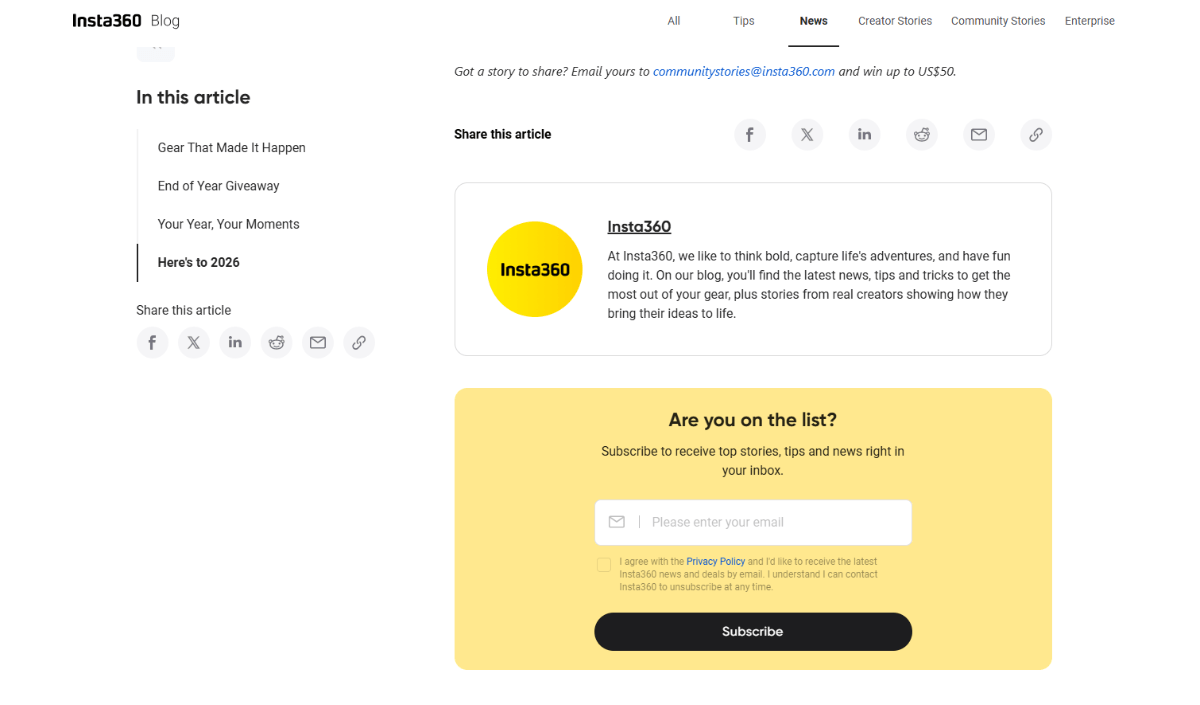
The sticky left sidebar contains a set of links under “In this article.” Each heading sits along a light gray progress bar. Users can either use it as a reference for where they’re or they can click the link to drop down to the relevant section (like if they were only on this page to enter into the giveaway).
This is also a good example as we can see how the designer has shifted around some traditional blog sidebar components. For instance, while the social media icons are in the sidebar, the blog subscription form sits at the bottom of the post.
If your blog gets lots of impressions but not a lot of new subscriptions, consider using a heatmap tool to see how much of your blog posts visitors are reading. If the majority barely make it to the end, consider adding the subscription form to the sidebar or inline with your content.
For the most part, the navigation is located within a horizontal header that sits at the top of a website. In most cases on desktop, the links are visible. In others, they’re tucked within a hamburger menu. Regardless, users know they will find your navigation at the top of the site.
So, why would anyone deviate from those expectations and place the links in a sidebar?
I tend to see this most with very small business websites and one-page websites. Similar to the table of contents example above, the navigation links take users to the relevant sections on the page.
That said, this sort of sidebar navigation can also work for bigger businesses. Take Expensify, for example. This is the We Are Expensify subdomain for hiring:
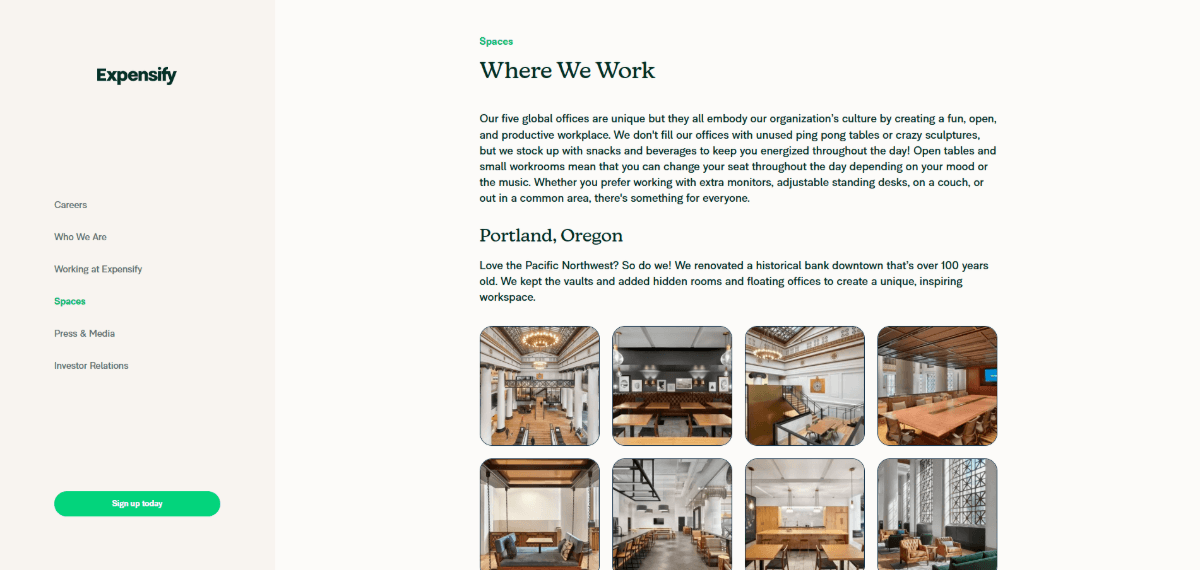
One of the reasons why this is effective is because it switches things up from the main website. The distinct layout lets users know they’re in a separate space. Also, by removing the main website header and content, prospective employees can focus on learning about the company and available opportunities.
If you’re building a microsite or subdomain for your brand, don’t be afraid to experiment with the layout as Expensify has done. While it might not be super effective for the larger site, it can create a unique and memorable experience on a smaller one.
When incorporating ads into your UI, you want them to be noticeable, but not overwhelmingly so. You can place them in the header, inline with your content, below your content, as well as in a sidebar.
Bon Appetit, for example, makes use of the sidebar for advertising purposes—but only on blog post pages.
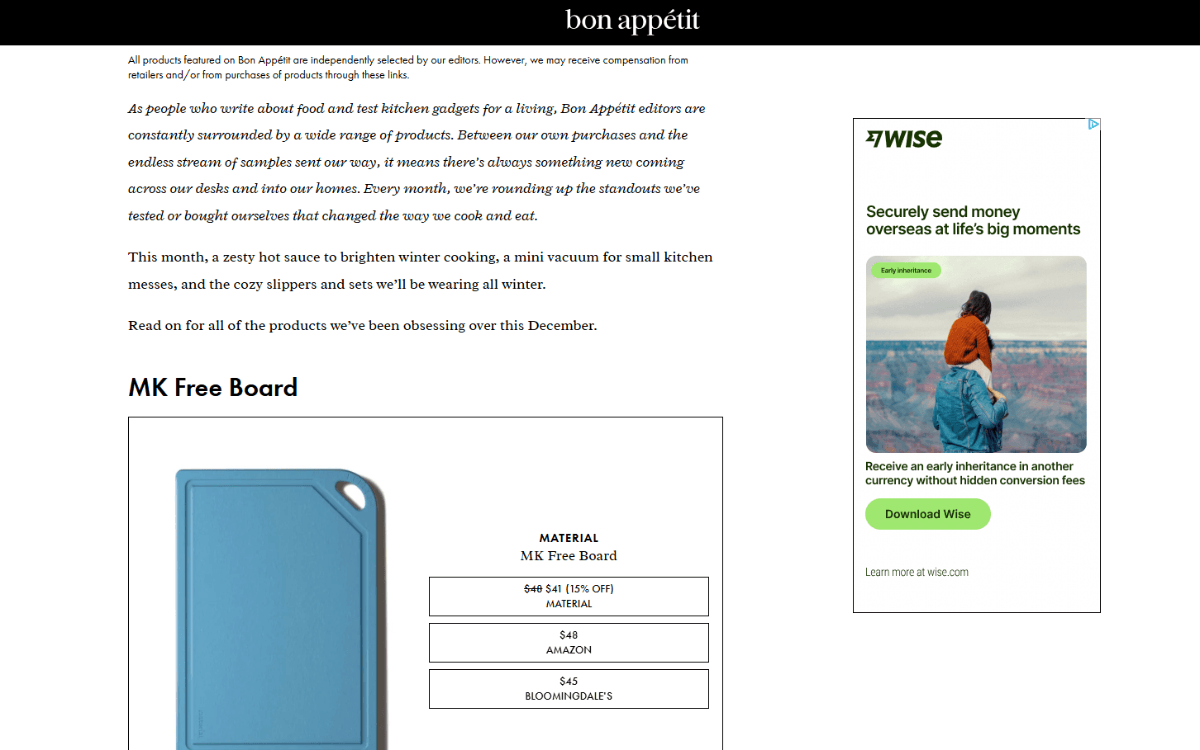
On pages with recipes—which already contain an inline sidebar with ingredients—sidebar ads don’t exist. The ads instead sit at the tops and bottoms of those pages. So, you may need to determine on a case-by-case basis which of your monetized pages can handle an ads sidebar.
When building stores with large inventories, it’s essential to give shoppers a way to narrow down their results and to sort them based on what’s most important to them.
Filters and sorting are not new features in ecommerce. But while some brands include those selections above their product lists, others continue to use the sticky sidebar to hold them.
Thrive Causemetics does this. However, they’ve taken a space-saving approach to their filters sidebar.
What you see here is not the default view in the shop:
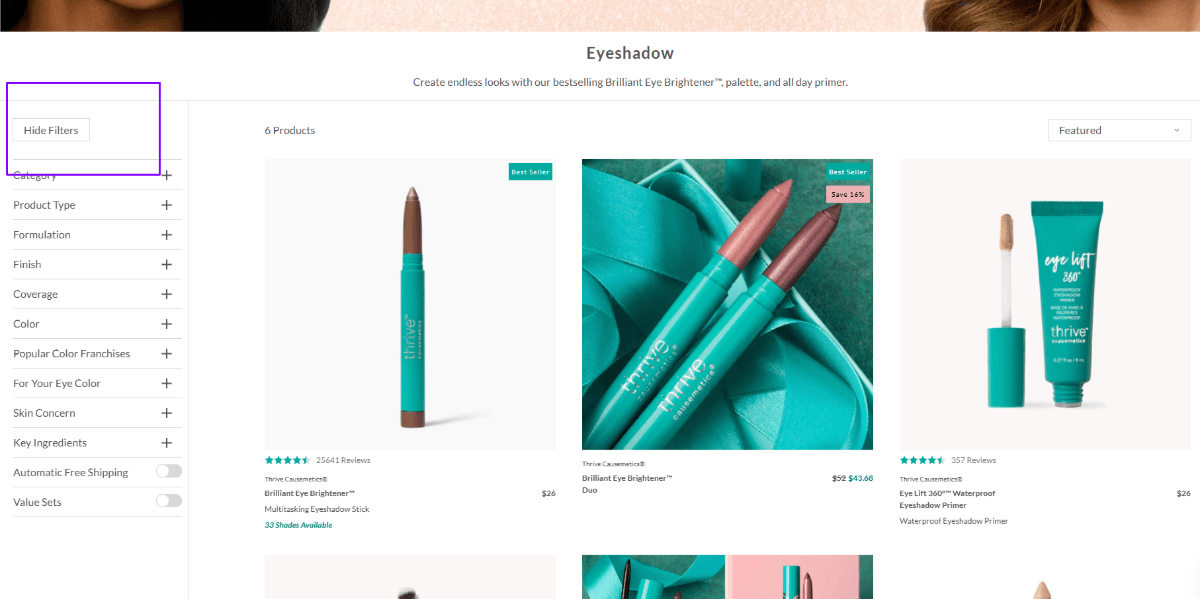
By default, shoppers just see the product grid along with the sorting button in the top-right corner. To pull out the filters, they click a button in the top-left that reads “Show Filters.”
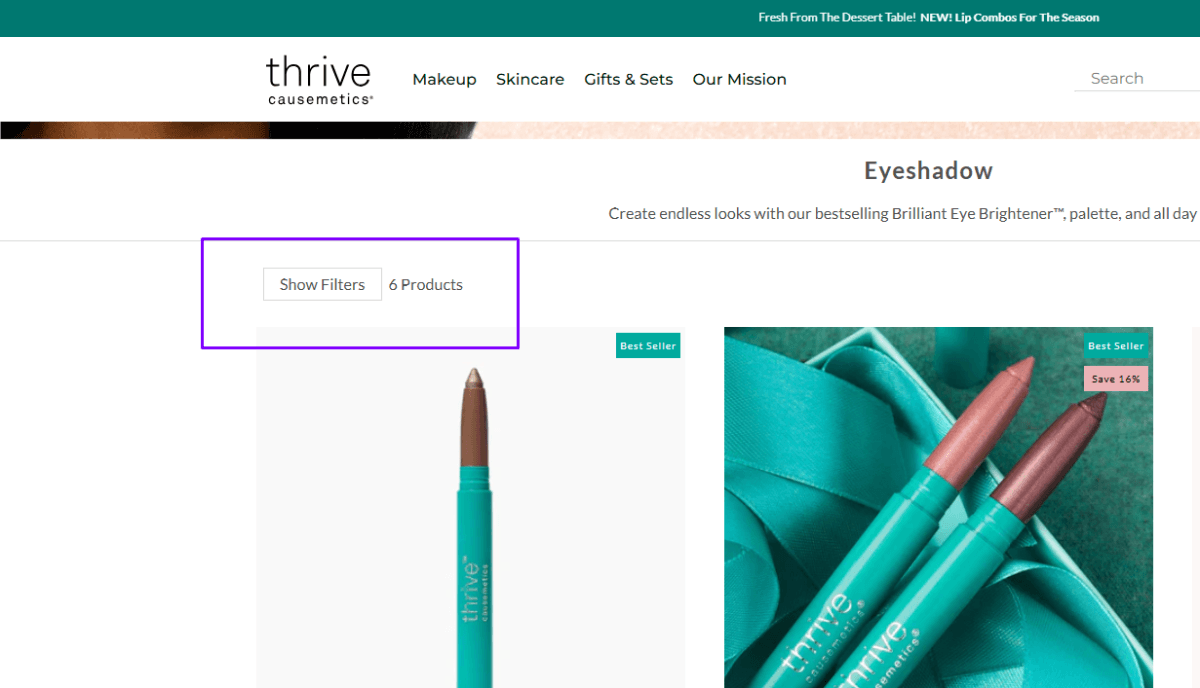
There are a couple of nice things about this design. For starters, the “Show Filters” button sits beside the product count. So shoppers can decide if it’s worth even looking at the sidebar.
Secondly, this can help to create cohesion between the desktop and mobile experiences. There’s nothing wrong with having a permanently visible sidebar on a desktop ecommerce site. However, if you’re looking to make the shopping experience feel more fluid across all channels, adding features that work similarly across devices will help.
SaaS product websites, in particular, almost always have a documentation area. Much like blogs and ecommerce sites that can grow large and unwieldy, many documentation hubs require an internal navigation.
Here’s what this looks like for Akamai Cloud:
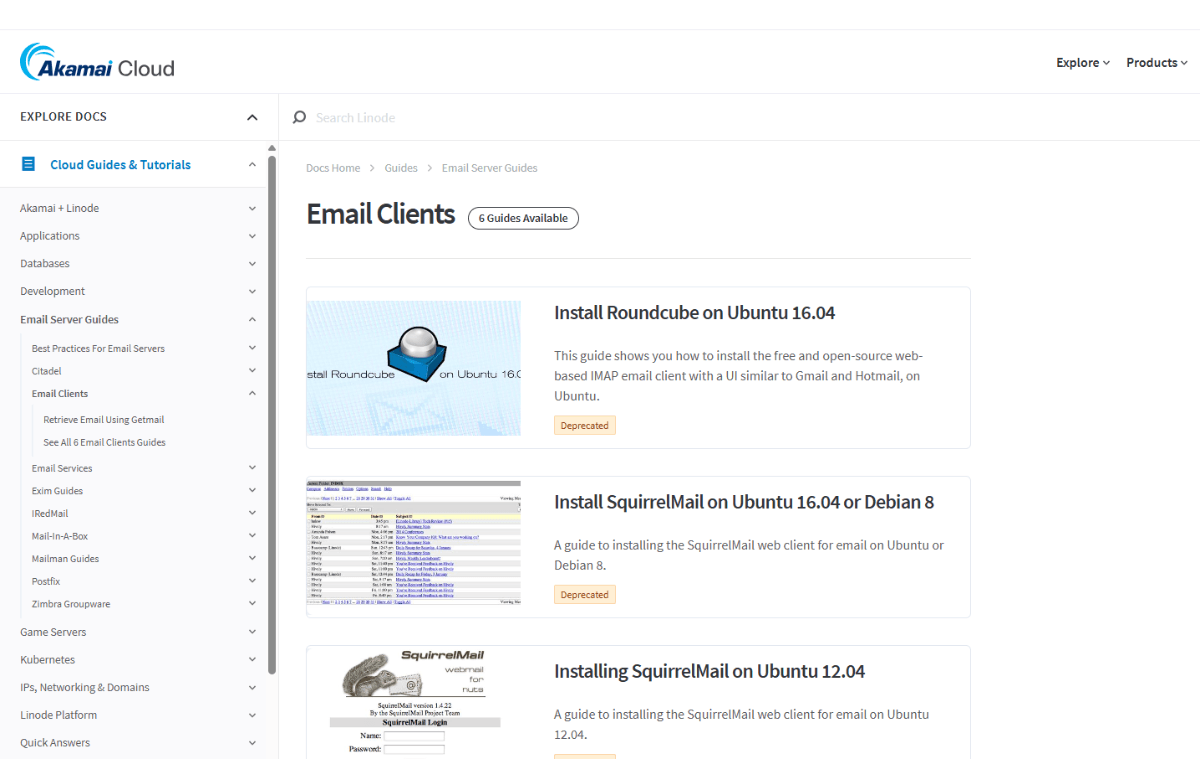
Along the left side of the screen is a sticky and scrollable navigation. Users can explore top-level categories and dig deep within them. The navigation design reflects where the user is in their journey, showing opened categories and nodes that connect the topic they’re looking at to related subtopics.
This sort of navigation really needs to be in a sidebar format. When you have more than seven or eight top-level categories or subjects, a header navigation or subnavigation won’t suffice.
Smartphone screens are not inherently sidebar-friendly. There’s just not enough room to place a sidebar beside the primary content. The solution for some is to drop all the sidebar content below the main content in responsive design. (This really only works if the information is truly secondary and not needed to navigate the on-page experience.)
Another option is to integrate the sidebar content within other aspects of the design. For example, if you have ads, you could add them as blocks within the content. Or, if you have a table of contents, you could turn the headings/section markers into tabbed links along the top or bottom of the screen.
Yet another way to handle it is by putting the sidebar content under a hamburger menu or other pullout menu like Hotels.com does:
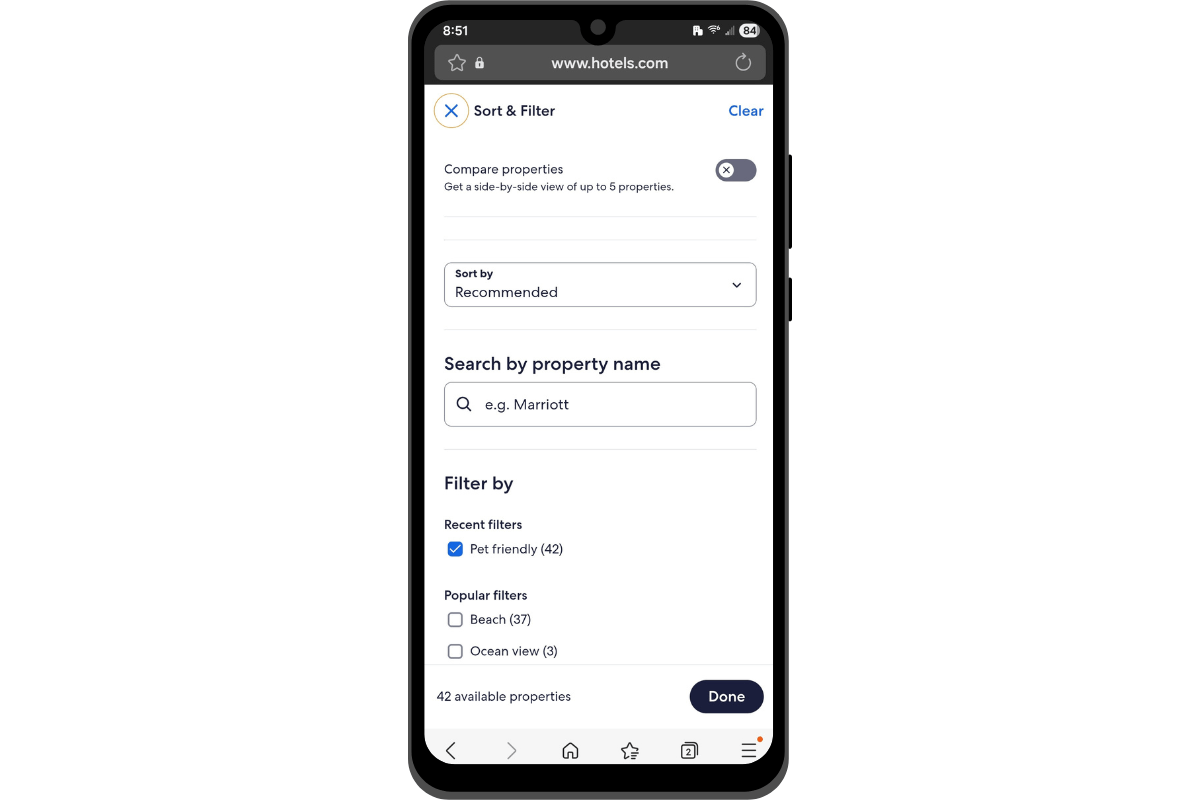
On desktop, the left side of the page displays the search bar and filters. The right sidebar is consumed by ads. But on mobile, there are a small handful of filters that sit along the top of the search results page. When the first filter is clicked, the screen you see above opens. This allows users to toggle as many of the available settings as they like, in addition to sorting the results and searching by property name.
Something to think about is whether you want the desktop and mobile experiences to be identical. Omnichannel marketing continues to grow in popularity because users crave convenient and seamless experiences.
If that’s a route you want to consider, then hiding the desktop sidebar may be the way to go. We saw something close to this with the Thrive Causemetics example above. While the placement and execution slightly differ between desktop and mobile, the end result achieves the same effect. The filters sidebar content only appears when the user wants to engage with it and it can be moved out of the way at any time.
The sidebar isn’t as vital of a component in web design as, say, the header or contact form. And if you’re adding it only because that’s how things have always been done, then it may be time to reconsider including it.
Sidebars may not be useful if:
That said, sidebars can be extremely helpful for certain kinds of content, like ecommerce, help centers and blogs. They keep things organized and allow users to more easily explore the rest of what’s on the site (and beyond).
Just keep in mind that sidebars are not inherently mobile friendly. So when making this content responsive, don’t be afraid to design different sidebar components for different devices. Or to choose sidebar designs that bring greater cohesion between the desktop and mobile experience.
White space is a critical component of everything we design. While there’s a very functional role that white space has to play, we can use it in creative ways as well.
Continue reading...
Are sidebars still relevant?
I saw someone ask this question the other day. Their argument was that we’re living in a mobile-first world which has no room for sidebars. Or does it?
While it’s true that sidebars of the past might not have as steadfast a place in web design, sidebars can still be useful components on websites. Let’s have a look at ways in which sidebars continue to serve us well.
How to Make Sidebars Work in a Mobile-first World
A sidebar is a column affixed to the right or left side of a webpage. It takes up a fraction of the width of the main content, usually between one-quarter and one-third.
What you place in the sidebar and where it goes typically depends on the surrounding content.
For example, an ecommerce sidebar will usually appear along the left side of the content, and it will hold product search filters and sorting settings. By contrast, a blog sidebar generally appears on the right side of the page and might contain items like a blog-specific search bar, links to relevant posts or even ads.
Here are some other things you might add to a sidebar:
- Table of contents
- Category links
- Subscription form
- Ads
- Social media buttons
- Shopping cart summary
- Dynamic content
Sidebars have always been a good place to store secondary content. This allows the content down the center of the page to remain the primary focus. Those wanting to explore further can turn their attention to the sidebar when they’re ready to do so.
What Types of Websites Benefit from Using Sidebars?
I would argue that sidebars still very much have a role to play on the web—for both desktop and mobile (I’ll speak to the mobile piece in the next section). In particular, sidebars come in handy for pages containing lengthy content, product documentation and ecommerce products.
So long as the sidebar doesn’t distract from the primary content, it can add value to the user experience. For one, it can make the UI feel organized despite having so much content within it. It can also give users clear direction on where to go or what to do next.
Let’s take a look at some ways to put the sidebar to use today:
Blog Links/Navigation
Over time, blogs can amass hundreds or even thousands of pages. Rather than let your older content get buried under the weight of new posts, a blog-specific navigation can help visitors discover the most relevant content, regardless of when it was published.
The Telerik blog, for instance, includes links to top-level and sub-level topic categories. For visitors looking for something more specific, they can use the search bar beneath the category navigation:
In addition, this sidebar includes social media follow links, internal links to the most popular blog posts and a subscription form at the bottom.
As an alternative, you could append a secondary blog-specific navigation to the bottom of the website header. The only thing is you won’t be able to fit much into that space besides top-level category links and a search bar.
If you want to increase blog subscriptions or social media follows, that content would have to go at the very bottom of your blog posts. And some users may never get far enough down the page to see that information. This is why the sidebar can be really helpful to have on a blog.
Table of Contents for Longer Content
Longer content like blog posts, whitepapers or reports may feel overwhelming for some users to scroll through. One thing you can do to decrease the overwhelm is to add a progress bar to the top of the page so they can see how much progress they’ve made.
Another option is to include a sidebar with a table of contents that:
- Outlines the content that lies ahead
- Shows the user’s progress by highlighting where they are
- Allows them to bounce around to relevant sections and topics
Here’s an example of how this looks on the Insta360 blog:
The sticky left sidebar contains a set of links under “In this article.” Each heading sits along a light gray progress bar. Users can either use it as a reference for where they’re or they can click the link to drop down to the relevant section (like if they were only on this page to enter into the giveaway).
This is also a good example as we can see how the designer has shifted around some traditional blog sidebar components. For instance, while the social media icons are in the sidebar, the blog subscription form sits at the bottom of the post.
If your blog gets lots of impressions but not a lot of new subscriptions, consider using a heatmap tool to see how much of your blog posts visitors are reading. If the majority barely make it to the end, consider adding the subscription form to the sidebar or inline with your content.
Website Navigation
For the most part, the navigation is located within a horizontal header that sits at the top of a website. In most cases on desktop, the links are visible. In others, they’re tucked within a hamburger menu. Regardless, users know they will find your navigation at the top of the site.
So, why would anyone deviate from those expectations and place the links in a sidebar?
I tend to see this most with very small business websites and one-page websites. Similar to the table of contents example above, the navigation links take users to the relevant sections on the page.
That said, this sort of sidebar navigation can also work for bigger businesses. Take Expensify, for example. This is the We Are Expensify subdomain for hiring:
One of the reasons why this is effective is because it switches things up from the main website. The distinct layout lets users know they’re in a separate space. Also, by removing the main website header and content, prospective employees can focus on learning about the company and available opportunities.
If you’re building a microsite or subdomain for your brand, don’t be afraid to experiment with the layout as Expensify has done. While it might not be super effective for the larger site, it can create a unique and memorable experience on a smaller one.
Advertising
When incorporating ads into your UI, you want them to be noticeable, but not overwhelmingly so. You can place them in the header, inline with your content, below your content, as well as in a sidebar.
Bon Appetit, for example, makes use of the sidebar for advertising purposes—but only on blog post pages.
On pages with recipes—which already contain an inline sidebar with ingredients—sidebar ads don’t exist. The ads instead sit at the tops and bottoms of those pages. So, you may need to determine on a case-by-case basis which of your monetized pages can handle an ads sidebar.
Ecommerce Filters & Sorting
When building stores with large inventories, it’s essential to give shoppers a way to narrow down their results and to sort them based on what’s most important to them.
Filters and sorting are not new features in ecommerce. But while some brands include those selections above their product lists, others continue to use the sticky sidebar to hold them.
Thrive Causemetics does this. However, they’ve taken a space-saving approach to their filters sidebar.
What you see here is not the default view in the shop:
By default, shoppers just see the product grid along with the sorting button in the top-right corner. To pull out the filters, they click a button in the top-left that reads “Show Filters.”
There are a couple of nice things about this design. For starters, the “Show Filters” button sits beside the product count. So shoppers can decide if it’s worth even looking at the sidebar.
Secondly, this can help to create cohesion between the desktop and mobile experiences. There’s nothing wrong with having a permanently visible sidebar on a desktop ecommerce site. However, if you’re looking to make the shopping experience feel more fluid across all channels, adding features that work similarly across devices will help.
Documentation Navigation
SaaS product websites, in particular, almost always have a documentation area. Much like blogs and ecommerce sites that can grow large and unwieldy, many documentation hubs require an internal navigation.
Here’s what this looks like for Akamai Cloud:
Along the left side of the screen is a sticky and scrollable navigation. Users can explore top-level categories and dig deep within them. The navigation design reflects where the user is in their journey, showing opened categories and nodes that connect the topic they’re looking at to related subtopics.
This sort of navigation really needs to be in a sidebar format. When you have more than seven or eight top-level categories or subjects, a header navigation or subnavigation won’t suffice.
How to Make the Sidebar Work on Mobile
Smartphone screens are not inherently sidebar-friendly. There’s just not enough room to place a sidebar beside the primary content. The solution for some is to drop all the sidebar content below the main content in responsive design. (This really only works if the information is truly secondary and not needed to navigate the on-page experience.)
Another option is to integrate the sidebar content within other aspects of the design. For example, if you have ads, you could add them as blocks within the content. Or, if you have a table of contents, you could turn the headings/section markers into tabbed links along the top or bottom of the screen.
Yet another way to handle it is by putting the sidebar content under a hamburger menu or other pullout menu like Hotels.com does:
On desktop, the left side of the page displays the search bar and filters. The right sidebar is consumed by ads. But on mobile, there are a small handful of filters that sit along the top of the search results page. When the first filter is clicked, the screen you see above opens. This allows users to toggle as many of the available settings as they like, in addition to sorting the results and searching by property name.
Something to think about is whether you want the desktop and mobile experiences to be identical. Omnichannel marketing continues to grow in popularity because users crave convenient and seamless experiences.
If that’s a route you want to consider, then hiding the desktop sidebar may be the way to go. We saw something close to this with the Thrive Causemetics example above. While the placement and execution slightly differ between desktop and mobile, the end result achieves the same effect. The filters sidebar content only appears when the user wants to engage with it and it can be moved out of the way at any time.
Wrapping Up
The sidebar isn’t as vital of a component in web design as, say, the header or contact form. And if you’re adding it only because that’s how things have always been done, then it may be time to reconsider including it.
Sidebars may not be useful if:
- Your website has a super minimalist design.
- Your web traffic heavily skews mobile.
- You have nothing to put in there but redundant info or links.
- The landing page needs to be the sole point of focus.
- You’re already struggling to keep your page speeds up.
That said, sidebars can be extremely helpful for certain kinds of content, like ecommerce, help centers and blogs. They keep things organized and allow users to more easily explore the rest of what’s on the site (and beyond).
Just keep in mind that sidebars are not inherently mobile friendly. So when making this content responsive, don’t be afraid to design different sidebar components for different devices. Or to choose sidebar designs that bring greater cohesion between the desktop and mobile experience.
4 Ways to Use White Space Creatively in Web Design
White space is a critical component of everything we design. While there’s a very functional role that white space has to play, we can use it in creative ways as well.
Continue reading...